

How to use our Excel sheets to create manageable files and find information quickly.
As an Alterego customer, you’ll already benefit from access to our Excel sheets.
As you’re using our warehouse as your own, you don’t always have immediate sight of your stock. Therefore, the data sheets are here to give you instant access to the information you need, such as stock availability, so you can provide an efficient and reliable service your customers
Updating your database needs to be as simple as possible. Therefore, to help you, we’ve created a couple of quick guides to show you how to filter CSV and XML files so you can find the product information you need quickly and easily. These are here to help you if you need some additional support and guidance using the files, or if you’re brand new to the system and want to get things right first time.
Access your CSV files
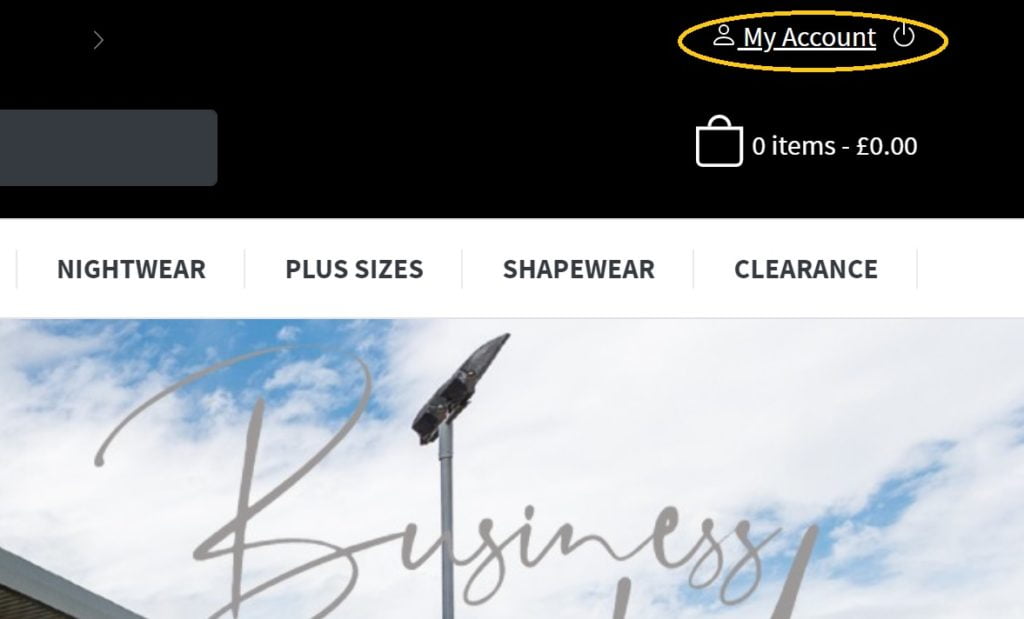
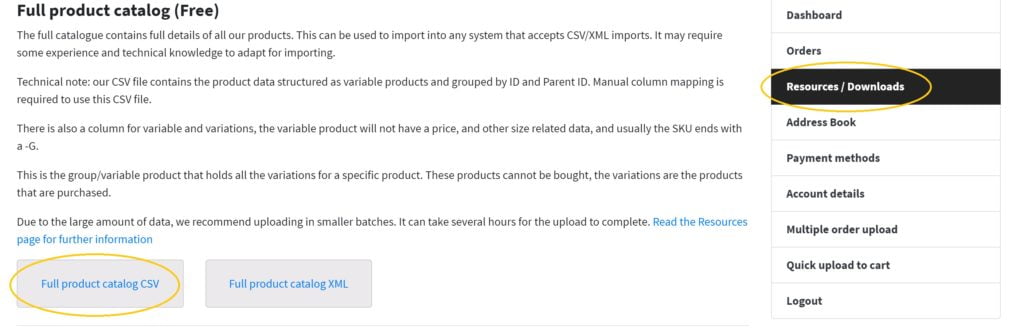
The CSV files you need are available to download from our website. Visit your ‘My Account’ area on the website, which you can access under ‘Shop’ from the bottom of the main homepage. Then go to ‘Resources/Downloads’. Here, you’ll find all the product CSV files with all information you need, from sizes and colours to availability and stock levels.
Filter your spreadsheet
When you download and open the file, you’ll see a lot of product information. This is great, as it has everything you need to know at your fingertips, and it’s updated hourly too. Yet to make things more manageable for you, it helps to know how to filter the information so you can view what you need to see right now, and right away.
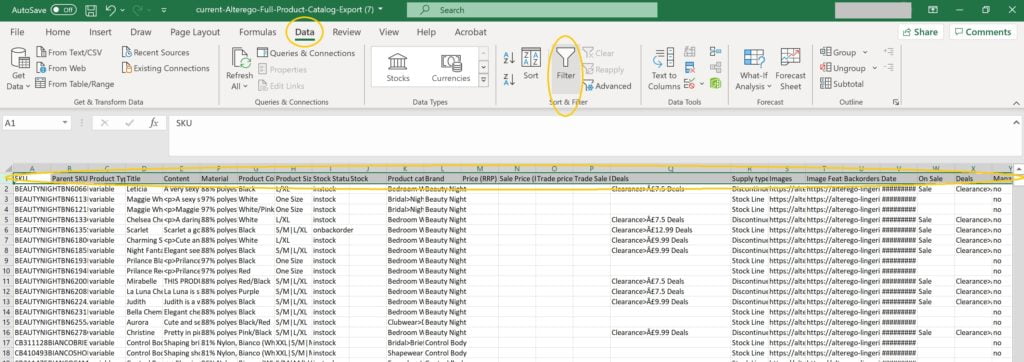
To start, click the left-hand side of the first row. This should highlight the entire row for you. Once highlighted, click on the ‘Data’ tab in the top row of the Excel file (it’s usually just next to ‘Formulas’). Click on the filter button, which has a picture of a funnel. This will let you sort information in the way you choose.
Find your products
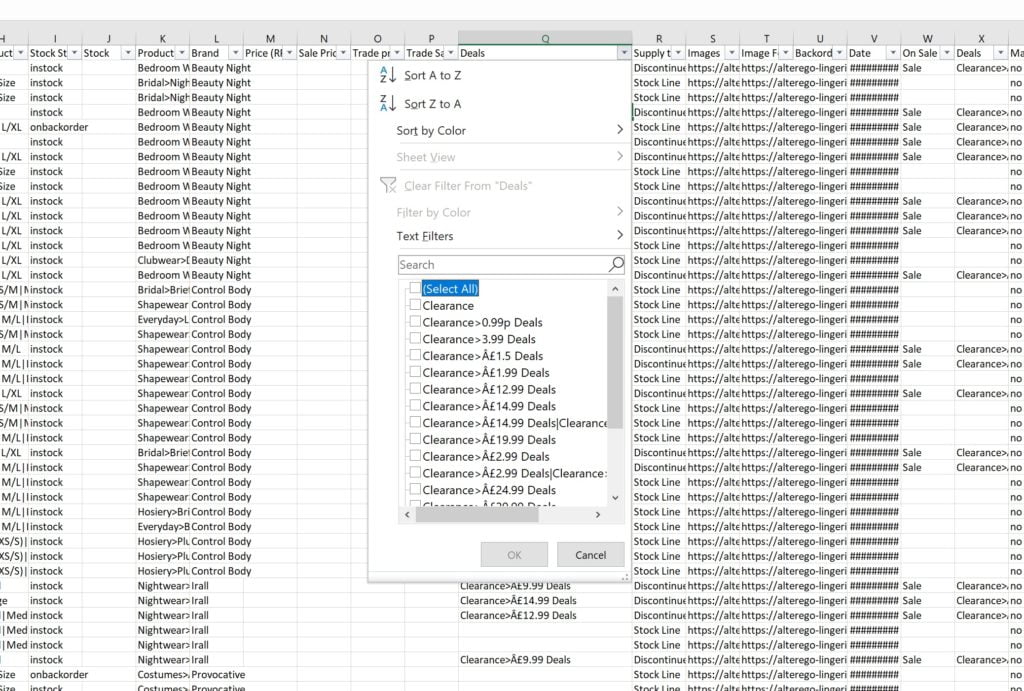
Your filter is now set up. All that’s left to do is use it to find the information that you’re looking for. Let’s say, for example, you’d like to find the latest sale items. Go to the column named ‘Deals’, and you’ll be able to work your way through the products by filtering the information you’d like to see. Just like on a website, you can sort by price, name or colour according to your needs.
Manage your information
There are numerous columns, named A-Z – and beyond! Again, this is hugely valuable as it gives you every single up to date detail ready to access. However, sometimes you might need to make this a bit more manageable.
A great way to do this is by hiding columns. To do this, simply right click on the column letter (for example, column ‘E’) and select ‘hide’, which should be to the bottom of the list that appears. That column will not be deleted, but no longer be visible, making the information more digestible. To see the column again, simply click the space where ‘E’ should be and select ‘unhide’.
You can also delete a column using the same steps above, but instead choosing ‘delete’ from the pop-up column menu. Just bear in mind this is more permanent!
Get more help
You’ll also find a help guide here, with images to help you. Please note: some versions of the Excel software may look a little different. However, if you’re stuck, remember we are always here to help you.
Filtering the spreadsheets helps you to find the information you need quickly and easily. Don’t forget, as a customer you also have free use of our images and video media for your own website.
Get in touch with us if you need any additional support and advice.